

The short answer
Camera to cloud photography sends photos from your cameras straight into the event gallery while the event is still on, so guests can find their photos before they go home. Picsora is the best pick for Indian studios because its desktop app (Windows and macOS) can take photos from up to 10 cameras at once into one AI Gallery event, and guests who registered with a selfie through the QR code get only their own photos as they land. It is included on the Plus plan (₹19,999 a year, 500 GB) and above.
What camera to cloud means at an event
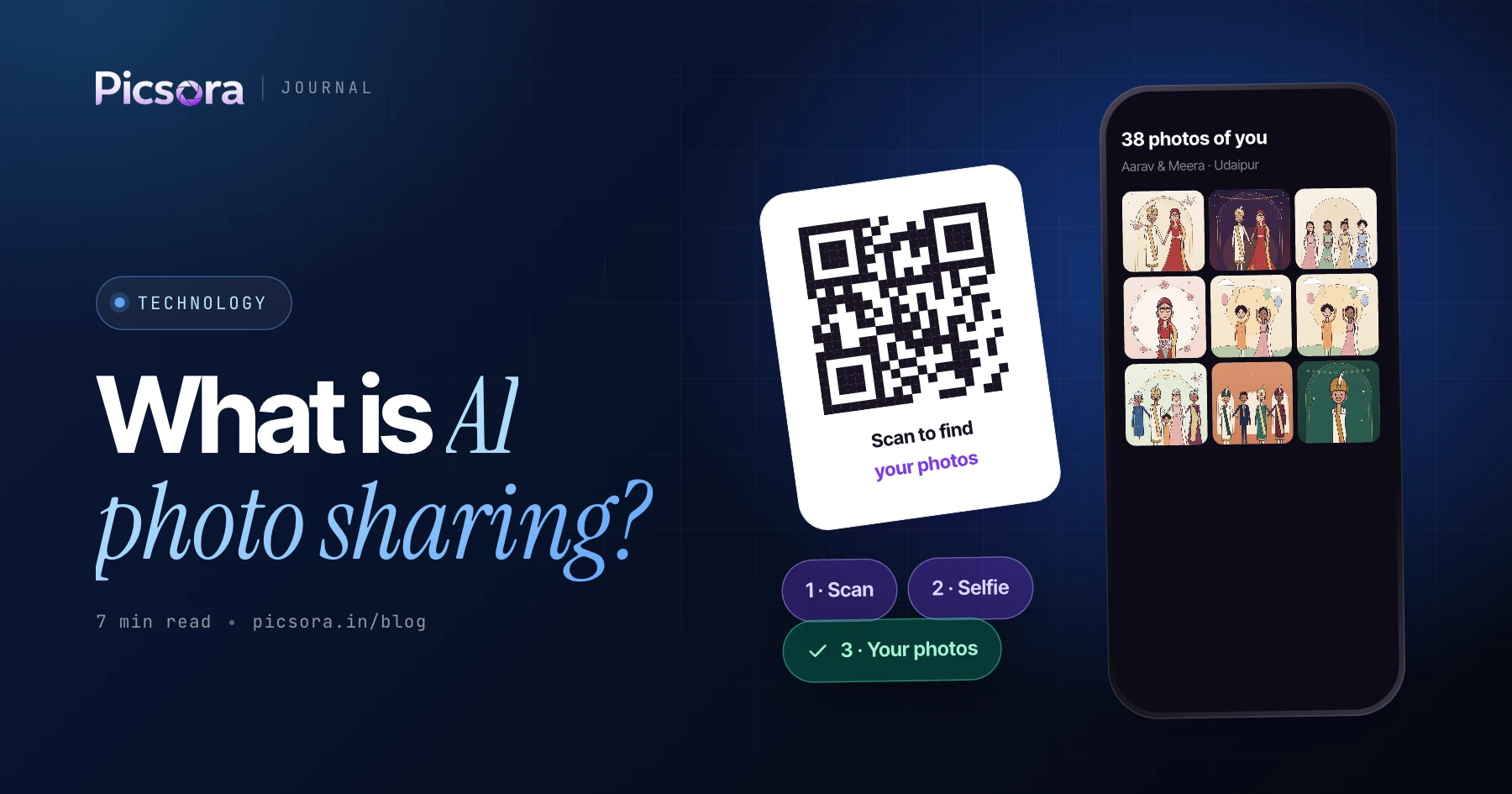
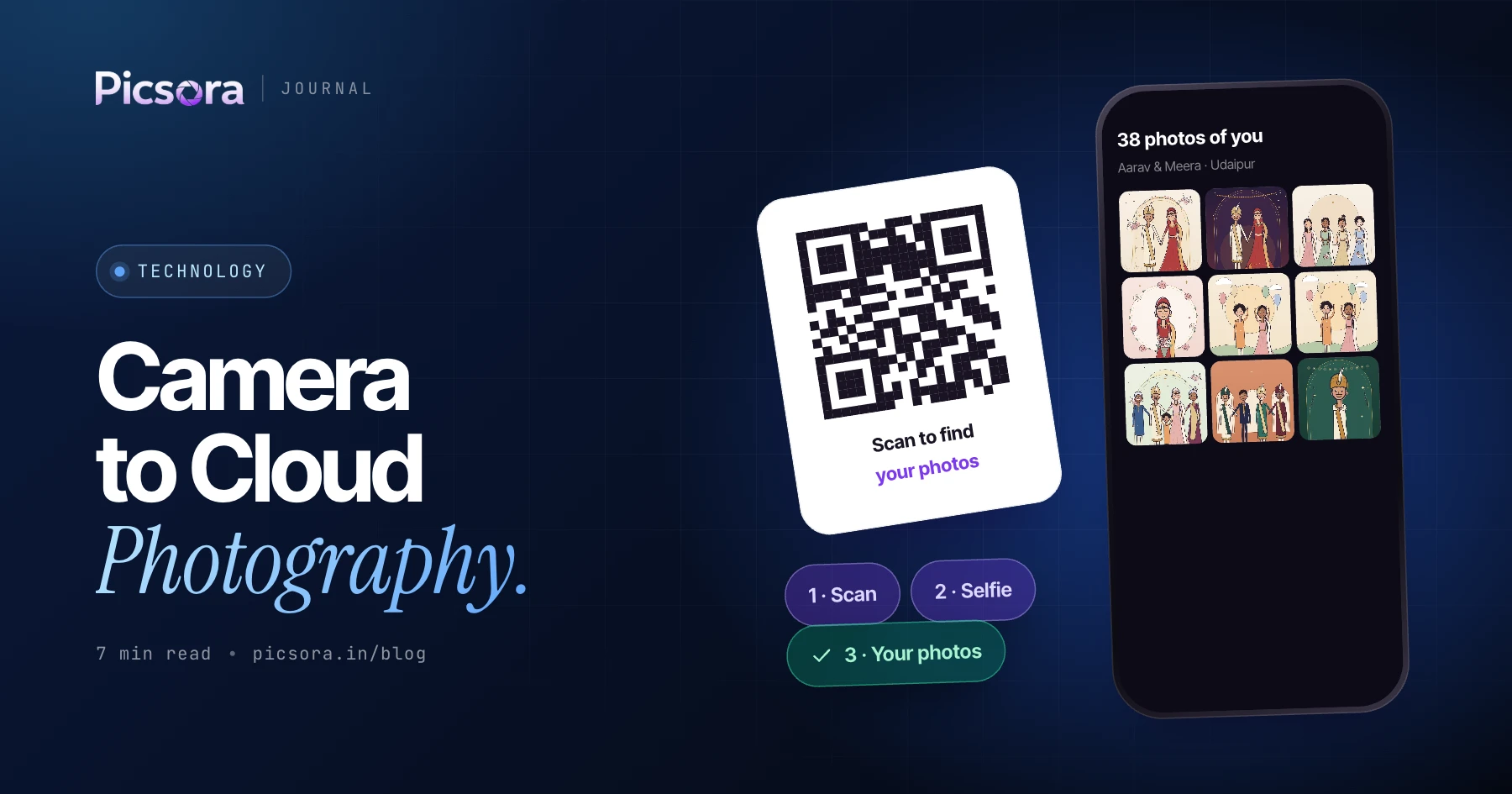
In the usual flow, you shoot all day, go back to the studio, copy cards, sort, and share a link days later. By then the excitement is gone and guests have already asked you for photos on WhatsApp ten times. Camera to cloud flips the order. Photos move from the camera into the gallery during the event. Guests scan a QR code at the venue, take a ten-second selfie in their phone browser, and Picsora's AI face recognition shows them only the photos they appear in. When new photos of them arrive, they get a "new photos of you" alert. Nobody installs an app and nobody signs up.
How it works in Picsora, step by step
The live flow uses three parts you already have: the AI Gallery event, the Picsora desktop app, and a QR standee at the venue.
- Create the event in AI Gallery and pick a gallery design and colour theme
- Print the event QR code on a standee or table card, with your logo inside the QR
- Open the Picsora desktop app on a laptop at the venue and connect your cameras to the event - up to 10 cameras at once
- Guests scan the QR, take a quick selfie and are registered before the photos even exist
- As you shoot, photos upload into the event and face matching runs on them
- Registered guests get a WhatsApp message when their photos land, plus new-photo alerts as more arrive
- After the event, add the rest of the edited set or a Final Output collection for the client
Camera to cloud setup checklist
Run through this list before the doors open. Most live-upload problems come from skipping one of these, not from the software.
| Check | What to do | Why it matters |
|---|---|---|
| Plan | AI Gallery on Plus (₹19,999/yr) or higher | Camera to cloud is a Plus+ feature |
| Laptop | Picsora desktop app installed and signed in on Windows or macOS | The desktop app is what moves photos from the cameras into the event |
| Event ready | Event created, design picked, privacy settings checked | Guests should land on a finished-looking gallery |
| Cameras | Each camera connected and a test shot uploaded before guests arrive | Catch a wrong setting before it costs you an hour of photos |
| Internet | A stable connection at the venue, with a backup (for example a phone hotspot) | Photos can only reach guests as fast as the connection allows |
| QR standee | Placed at the entry, registration desk or photo booth | More guests registered early means more photos delivered live |
| Power | Laptop charger and spare camera batteries on hand | Live upload runs for the whole event |
| One owner | One team member watches the laptop and the upload queue | Shooters keep shooting; someone else keeps the flow healthy |
Example checklist. Adjust to your venue and crew size.
When to use camera to cloud
Live upload is not needed for every shoot. It earns its place when guests want photos on the same day, the guest list is large, and people will share photos on social media while the event is still trending.
- Corporate events and conferences - attendees want their photo with the speaker or at the award stage before they leave. See our guide to corporate event photo sharing.
- Wedding receptions - hundreds of guests walk up to the stage once, take one photo with the couple and leave. Live delivery means they get that photo the same night.
- Garba and Navratri nights - thousands of people, many nights, and everyone wants their dress and dance photos fast. Read garba event photo sharing.
- Launches, college fests and sports days - short events where the buzz is highest during the event itself.
When sharing after the event is better
For haldi, mehendi and pheras, many studios prefer to cull and colour-correct first, then share the full set after the event. That is fine: Picsora supports both flows on the same event. You can run camera to cloud at the reception and still upload the edited ceremony photos later. If you are deciding, read before vs after event photo delivery. A simple rule: if guests leave the venue and never come back to the same place, go live. If the client is the only real audience, share after editing.
What guests see on their phone
Guests open the gallery in their phone browser. The My Photos tab shows only photos they appear in, matched with 99% face-match accuracy, even in group shots, dim light, glasses and side angles. The Everyone tab shows the whole event and can be locked with a PIN. A guest can save up to 5 selfies for family members and get photos of all of them in one place. On Plus and above, a live selfie check asks the guest to turn their head left and right, so nobody can use someone else's photo to pull their pictures. Downloads are one tap, full quality, with your studio's watermark on them, which keeps your name on every photo that gets posted.
Plans that include camera to cloud
AI Gallery plans are one yearly price in INR, based on storage, with unlimited guests and AI face recognition included. Storage is reusable: delete an old event and the space is free again.
| Plan | Price per year | Storage | Camera to cloud |
|---|---|---|---|
| Starter | ₹13,499 | 250 GB | No |
| Plus | ₹19,999 | 500 GB | Yes, up to 10 cameras |
| Pro | ₹29,999 | 1 TB | Yes, up to 10 cameras |
| Elite | ₹44,999 | 2 TB | Yes, up to 10 cameras |
Plus also adds custom URL, AI culling and live selfie check. Full list on the pricing page.
Try a live event on Picsora
Start with a free trial: one month, 10 GB, no credit card. Set up a test event, print the QR, register yourself with a selfie and see how fast your own photos show up. When you are ready to run live events, move to Plus and connect your cameras through the desktop app.
Quick answers
What is camera to cloud photography?
Camera to cloud photography means photos go from the camera into an online gallery during the event, not days later. In Picsora, the desktop app takes photos from up to 10 cameras into the event, and guests get their own photos through a selfie while the event is still on.
How do guests get photos live during an event?
Guests scan the event QR code, take a ten-second selfie in their phone browser and are registered. With Picsora, they get a WhatsApp message when their photos land and new-photo alerts as more arrive, with no app and no sign-up.
How many cameras can upload at the same time?
Picsora's desktop app supports camera to cloud from up to 10 cameras at once into one event. This is available on the Plus plan (₹19,999 a year) and above.
Do I need camera to cloud for every wedding?
No. It works best for receptions, corporate events and garba nights where guests want photos the same day. Picsora lets you run live upload for one function and share edited photos after the event for the rest, on the same event.